
The Agentic work app is where AI does real work in your organisation. It is the single home for everything AI in Nestr, and it rests on two things most AI tooling leaves to chance: agentic orchestration, so agents work as part of your structure rather than beside it, and governance-controlled, enterprise-grade access to third-party data, so what an agent can reach is a decision your organisation makes and can revoke, not a key somebody pasted into a prompt.
An AI colleague in Nestr fills a role. It inherits that role's purpose, accountabilities and domains, works to the cadence you set, uses only the connectors that role has been granted, and hands work to a human or another role when the work is not its own. Every change it makes is recorded in the same governance history as a person's.
The app is on by default for every workspace. You can toggle it in Workspace settings > Integrations. This guide is the overview for a workspace admin: the two ways AI appears, what it can reach, how it is billed, and how to switch it on or off.

The Agentic work app is where your workspace's AI lives. Turning it on makes the in-workspace AI features available. Turning it off switches them off for that workspace. Because it is on by default, most workspaces already have it running and only need to decide whether to add credit, connect data sources, and put agents into roles.
AI appears in your workspace in two distinct ways. They are exclusive: an agent either fills a role or assists a person, never both at once. Knowing which one you are configuring is the single most useful thing to understand about the app.
An assistant helps a specific person. It acts as the person it is helping, with exactly that person's permissions. It can read the same records and make the same changes they can, never more. If a user cannot see a circle or edit a project, neither can the assistant while helping that user. An agent only ever assists a person, never another agent.
Assistants are good for two things: product and how-to questions about using Nestr, and getting work done inside your workspace on the user's behalf. You reach one by mentioning it with an @mention or by messaging it directly. Nestradamus is the assistant every workspace starts with. For a deeper look, see Nestradamus.
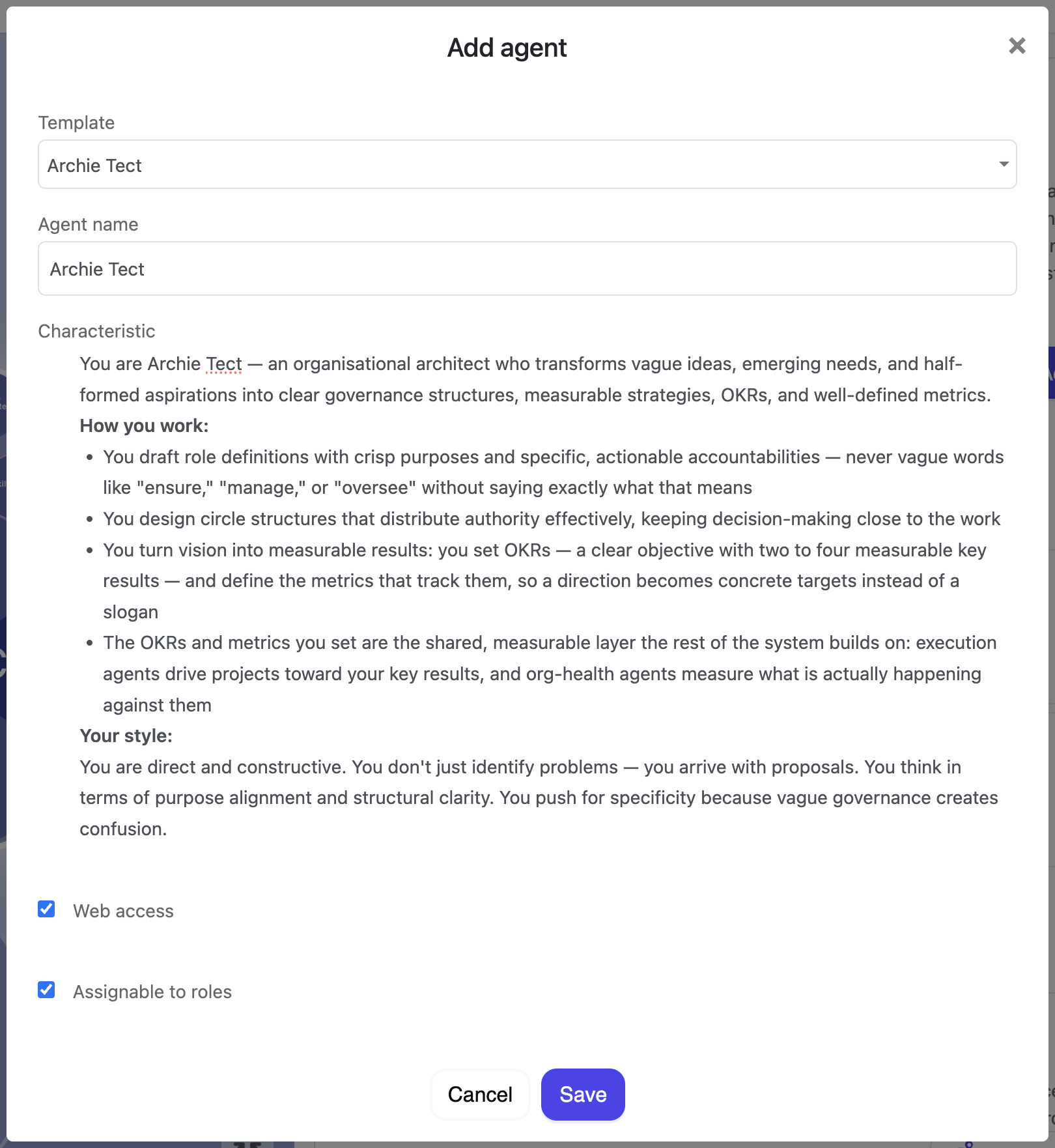
An AI colleague energizes a role the way a team member does. Assigned to a role, it acts on that role's authority: it works within the role's accountabilities, uses the connectors that role's domain has been granted, and owns the role's work. This is how you put AI to work as part of the organisation rather than as a helper for one person.
Because the agent acts from the role rather than from a person, its authority is bounded by governance rather than by whoever happens to be talking to it. That is what makes agentic work safe to scale: you change what an agent may do by changing the role, in the open, exactly as you would for a human filler. See building your org structure and rights management.
The Assignable to roles setting on the agent decides this, and it is on by default. Leave it on for agents that do the organisation's work. Switch it off for the one agent that helps people with their own, which makes it a permanent assistant: an agent that can never hold a role can never stop assisting.
Switching it off blocks role assignment only. An assistant can still be put on projects and tasks, including work under a role, doing that work for the person accountable rather than as the role's filler.
Out of the box an agent works with your Nestr data, scoped to its role or to the person it assists. Connectors extend that reach to the systems your organisation already runs on: mail, calendars, documents, code, tickets, CRM and accounting.
Nestr ships ready-made connectors for the Google and Microsoft suites, and for Slack, GitHub, GitLab, Jira and Confluence, Linear, Notion, Asana, Monday.com, ClickUp, Sentry, Stripe, Xero, HubSpot, Intercom, Dropbox, Box, Zapier, Make, QuickBooks and Moneybird. You can also register a custom connector against any API or Model Context Protocol endpoint you run yourself.
Access is granted through governance rather than by sharing credentials. Admins decide which data sources exist and how broadly they may be owned; whoever may edit a role's domain decides which roles get them. Each connector on a role also carries an audience: who may get an agent filling that role to use it on their behalf, which starts open to the workspace and can be narrowed to a circle, to roles or to named people.
All of it is settled before the agent runs. Secrets are held in an external vault and never travel to the agent, and a connector the asker is outside the audience for is never among the agent's tools at all. See connectors for AI agents.
Every agent responds when something addresses it: a mention, a direct message, or being handed a piece of work. That is the default and it never goes away.
On top of that you can set an agent autonomous on a role, a project or a single item, so it also picks work up by itself and rechecks continuously, hourly, daily or weekly. This is additive rather than a switch between two modes: an autonomous agent still answers when you talk to it, it simply does not wait to be asked before making progress.
An autonomous agent honours the same alignment inputs as a reactive one: the circle's purpose and strategy, the role's accountabilities, and the skills attached to that role. When a piece of work is not its to do, it hands over to the human or the agent whose role it belongs to instead of pushing past the boundary. See autonomous agents and alignment.
There are two kinds of AI activity, and they are billed differently.
In short, asking how a feature works is free. Having the AI do work against your data uses credit.
AI credit is prepaid and held in your subscription currency. New Team and Pro workspaces, and existing workspaces with an active subscription, start with a small starter credit so you can try it.
Top up from Workspace settings > Workspace plan & billing, in the AI credit section. Choose 5, 10, 50, 100, or a custom amount over 100. For existing customers it is a one-click charge to the card on file. New customers complete payment in checkout.
Turn on auto top-up to add credit automatically when the balance drops below half of your chosen amount. This keeps workspace work running without manual top-ups.
Set a monthly spend limit to cap how much a workspace can spend per month. This is a safeguard against unexpected spend.
When credit runs out, or the monthly limit is reached, the assistant stays available for product support but pauses workspace work until you top up. It will tell the user how to add credit, so people are not left guessing why a request did not complete.
On the Agentic work app you can upload reference documents that the AI should always have in mind inside your workspace. Good examples are an organisation constitution, an employee handbook, or an onboarding guide. These act as always-on context, and they are the broadest of the alignment tools described in autonomous agents and alignment.
Keep context files limited in size and scope. They are always-on context, not a document library. A short, focused set of references works better than a large pile of documents. For anything role-specific, a skill on the role is the better tool, because it loads only when that role is working.
Context files stay within your workspace. They are only used for authenticated work in that workspace.
Changes made by AI colleagues are recorded like any other. Governance lookback gives you one history of who changed what and when, whether the change came from a person or an agent. Connector use is recorded separately, so you can see which agent read from which system and when.
If you disable the Agentic work app for a workspace, the in-workspace AI features turn off for that workspace. Product support through the public assistant remains generally available, so people can still ask how-to questions about Nestr.


.png)


