
Nestr structures your organisation around purpose using roles and circles rather than traditional job titles and departments. Each role has a clear purpose, accountabilities, and domains. Circles are self-governing teams that contain roles and can nest within each other.
This guide walks you through building and managing your organisational structure step by step.
There are two ways to create a role:


Note: In workspaces with governance enabled, non-admin users may see Create proposal instead of Create role. This routes the role creation through the governance consent process so circle members can review it.
Circles are teams within your organisation that contain their own roles. To create a sub-circle:

When a new circle is created, Nestr automatically adds the roles marked as core roles in Workspace settings → Applications → Default circle roles. Out of the box that is four governance roles:
"Circle admin rights" is a configurable field on every role, not a fixed property of the four core roles. You can set it to any of the built-in shortcuts (Normal member, Circle admin, Role assigner, Circle plus sub-circles admin) or to any custom permission profile defined in your workspace. Whoever fills the role inherits the chosen rights inside the role’s circle and loses them again on unassignment. See Rights management.

You can also hover over any user's avatar in the role fillers widget on the left side of the Roles tab.
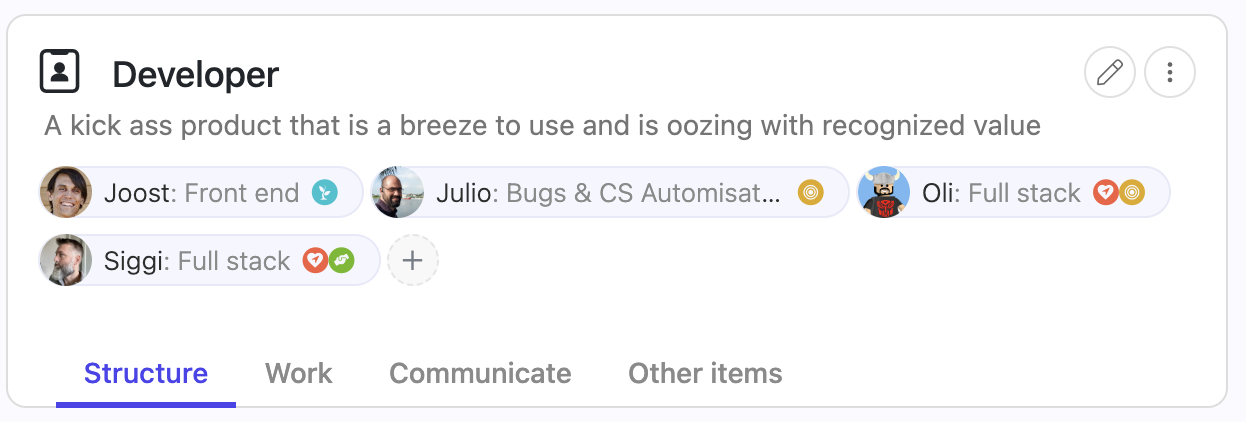
When several people fill the same role, you can record what each of them concentrates on. This is called a focus area, and every role filler has their own.
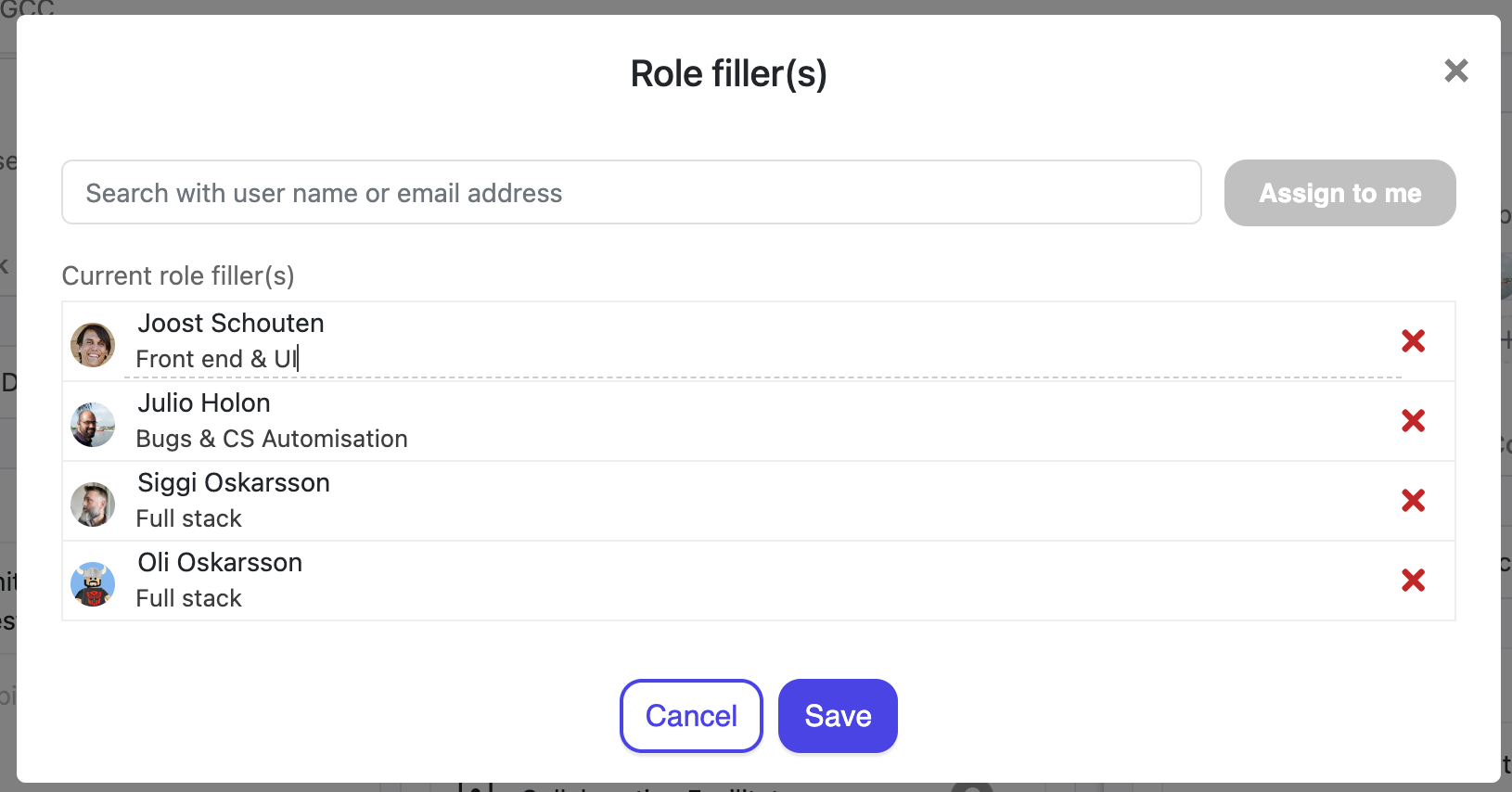
Focus areas show up wherever the role does: in the tooltips when assigning work to a role, and under each role on a member’s profile and in their My roles view.
Focus areas are also brought across when you import from Glassfrog, Holaspirit or Peerdom.

Alternatively you can also click the User icon in the top right and click the X in the pop-up and save to remove the user from the role.

To move a role from one circle to another, you can change the role's parent circle. If you have admin rights, you can:

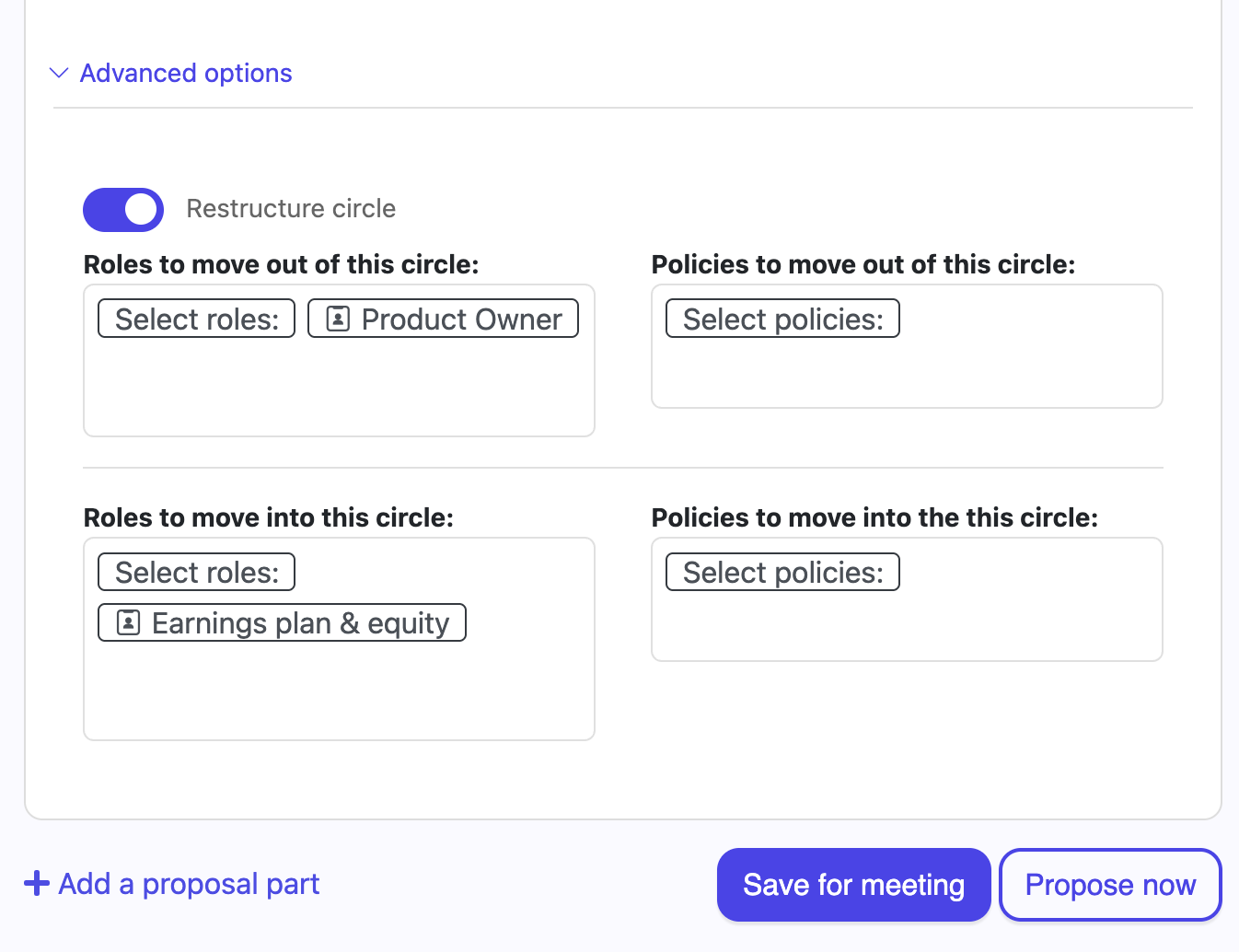
More appropriate is to use proposals so that all circle members can consent to the proposed move. through proposals you can only move a role up or down in the circle hierarchy one step at a time. To do this:

The four roles above are role templates that every new circle receives. They are defaults, not fixtures: an admin can edit them, switch any of them off, or add templates of your own, under Workspace settings → Applications → Default circle roles. See Role templates and core roles.

To assign someone to a core governance role, navigate to the circle's Structure → About tab where these roles are listed, and assign users just like any other role.
Each role and circle can have domains (areas of exclusive control) and policies (rules granting or restricting access to domains):

In governed workspaces, changes to domains and policies go through the governance proposal process.
In Nestr, circle membership is determined by role assignment. When someone is assigned to any role within a circle, they automatically become a member of that circle. There is no separate "add member" action — membership flows from role assignment.
This means everyone in a circle has a clear reason for being there: they fill at least one role that contributes to the circle's purpose.


.png)


