
A template is a circle, role or project you set up once and create again whenever you need it. A circle template can hold its own roles, sub-circles, accountabilities and domains, so a team that repeats across regions, courses or clients starts from the same structure every time.
Open the Item settings of your workspace, a circle or a role, and go to the Templates tab. It lists every template you can use from there, in alphabetical order. You need to be a workspace admin, or an admin of that circle or role, to see the tab.
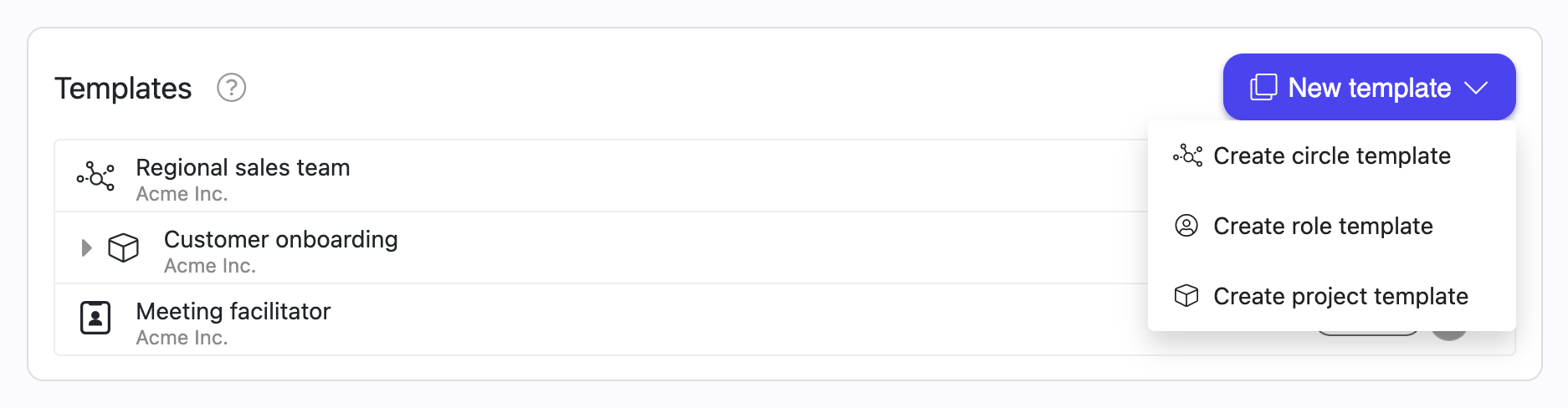
Every template is stored in a circle or in the workspace, and that decides where it can be used: there, and in everything below it. A workspace template is available everywhere. A template stored in the Sales circle is available in Sales and its sub-circles, and not in a neighbouring circle.
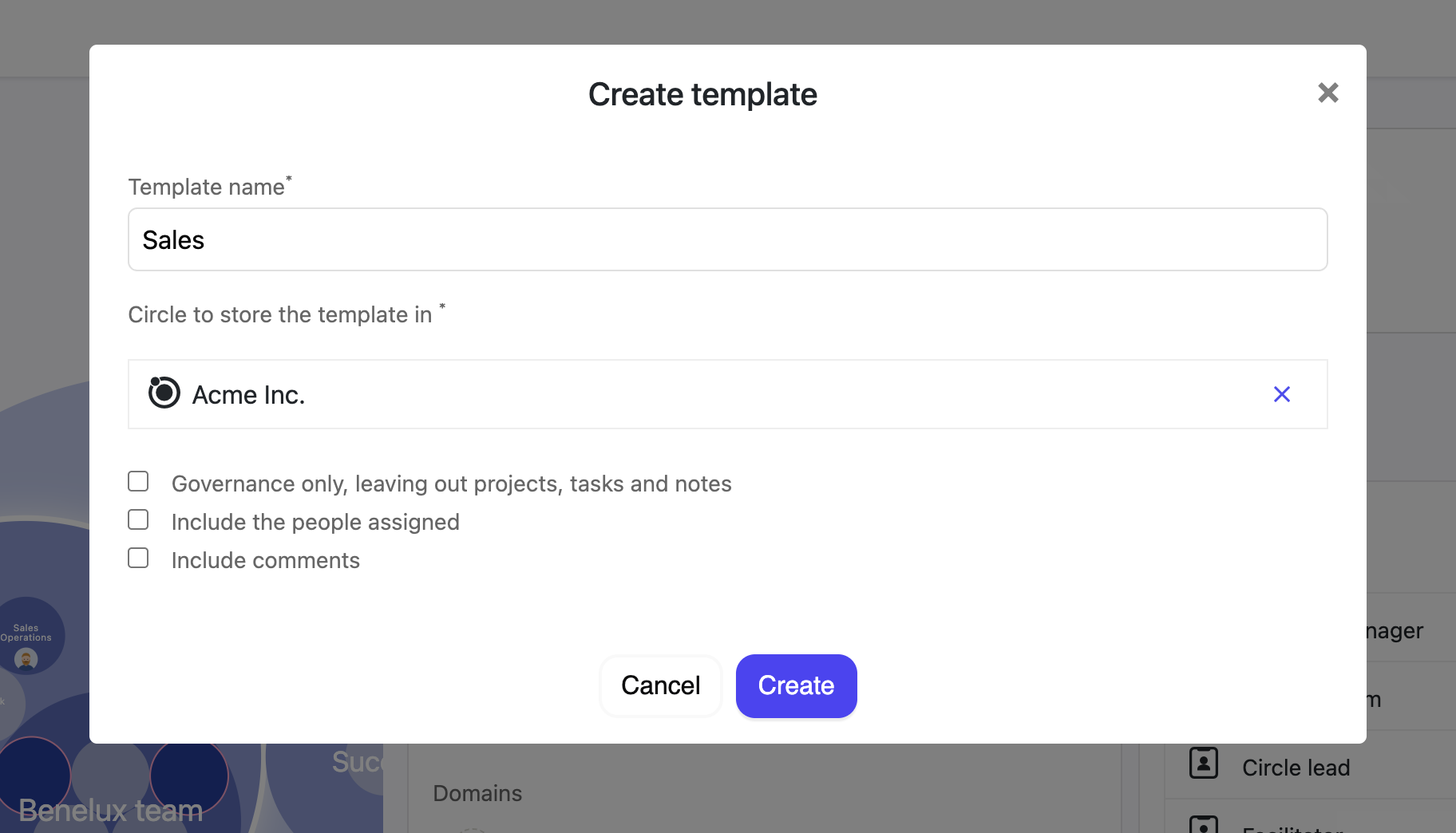
By default the template keeps the structure and work inside the item and leaves out who is assigned and any comments. Three options change that:
A template never goes through a proposal. It is a starting point, and nothing in your organisation changes until someone uses it.
Click a template in the list to open it beside your settings. You work on it the same way you work on the real thing: add roles, sub-circles, accountabilities, domains or tasks with the usual buttons. Everything you add becomes part of the template, and a template tag shows you where you are. An open circle template appears with a dashed outline in the circle map.


The dropdown shows templates of the type you are creating that are available in that spot. It also offers Copy existing..., which copies an item you already have instead of a template. You do not need to be an admin to use a template. Being allowed to create the item is enough.
A template creates something new. It does not reset or overwrite an existing circle, so to return to a clean baseline, create a new circle from the template.
On anything made from a template, the Notify me menu has a section for every copy of it, so you can hear about assignments or changes to, for example, every Team Lead in the organisation. See Notifications and email settings.
Role templates also appear in this list. The roles every new circle receives, and roles that stay linked to their template, are configured separately. See Role templates and core roles.


