Nestr sends notifications to keep you informed about what matters in your workspace. This guide explains what gets sent, how to control it, and how to set up your own custom notifications.
Types of email notifications
Nestr sends emails for:
Meeting summaries — when a circle or governance meeting is closed, all participants receive an email report with agenda items and outcomes.
Governance proposals — when someone proposes a governance change asynchronously, all circle members receive an email to review and respond.
Feedback requests — when someone requests feedback from you.
New feedback received — when someone gives you feedback.
Workspace invitations — when you're invited to a workspace or a role.
Tension notifications — when someone raises a tension directed at one of your roles.
The notification bell
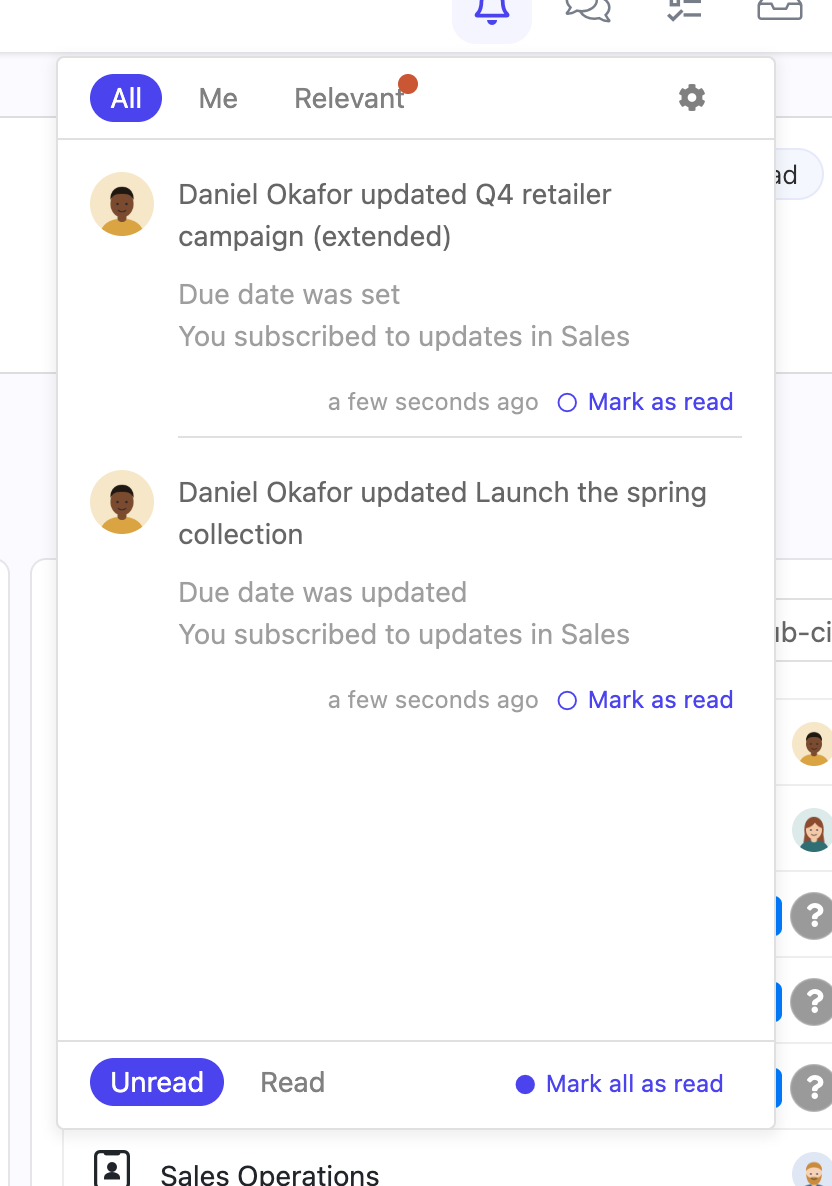
The bell icon in the top right shows your in-app notifications:
A dot on the bell means you have unread notifications.
Click the bell to see them. The tabs along the top narrow the list, and Unread and Read at the bottom switch between the two.
Click a notification to go to the related item.
Use Mark as read on one notification, or Mark all as read for the whole list.
Each notification says what changed and why you received it.
Meeting summary emails
After a meeting is closed, Nestr automatically emails a summary to all circle members. The email includes:
All processed agenda items
Outcomes (actions and projects) assigned during the meeting
Who was present
Not receiving meeting emails?
Check that you are a member of the circle (assigned to at least one role).
Check your spam/junk folder.
Meeting emails are only sent if the meeting is closed within 7 days of being started.
Receiving meeting emails from circles you're not in
Currently, meeting summary emails are sent to circle members. If you need visibility into another circle's meetings, consider having a cross-link role or asking the circle to share meeting notes.
Managing notifications
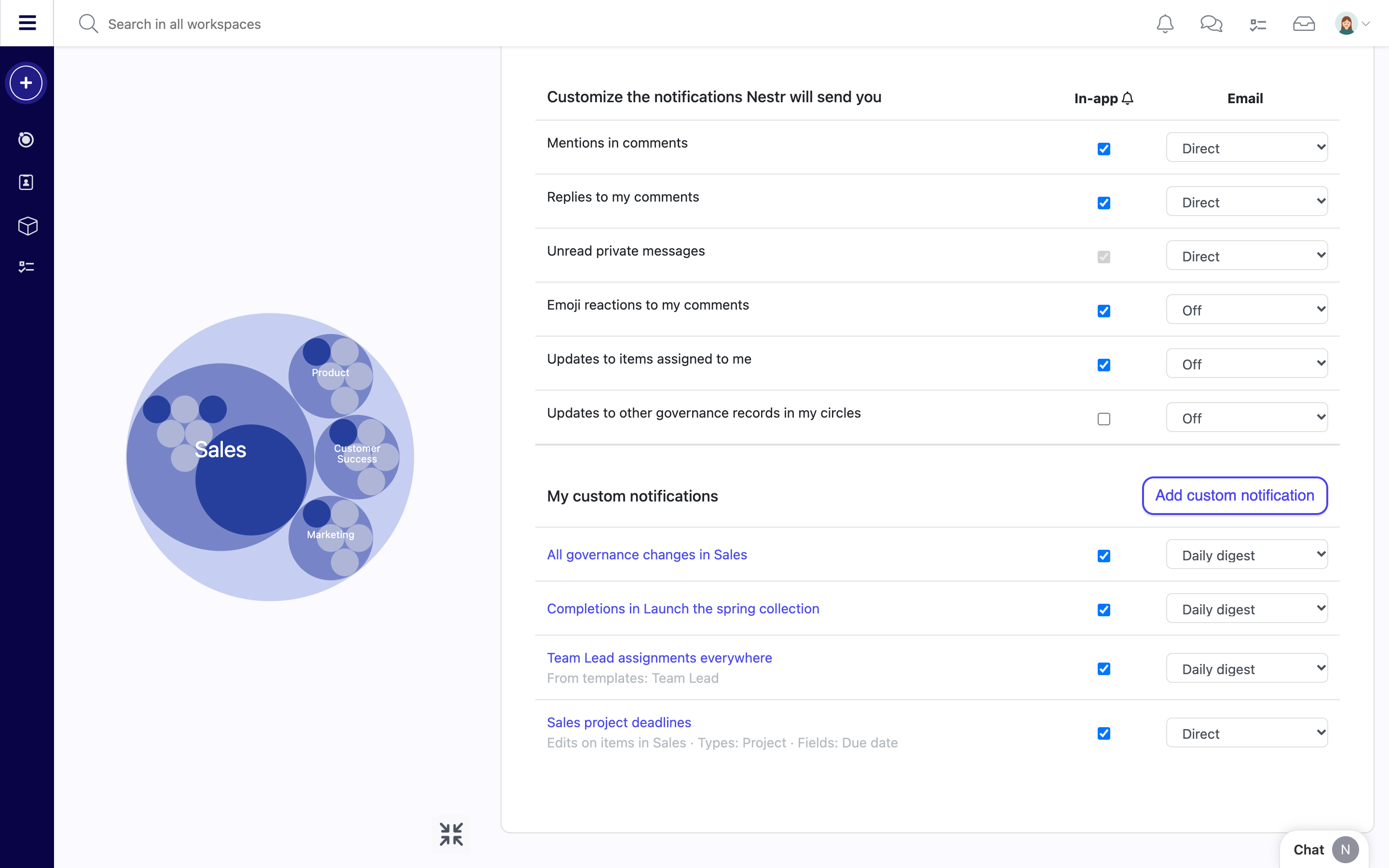
Open your profile and go to the Notifications tab. The table at the top sets what you receive for mentions, replies, private messages, emoji reactions, updates to items assigned to you, and governance changes in your circles.
Each row has an in-app checkbox and an email setting:
Off: no email.
Direct: an email for each notification.
Daily digest: one email a day at 08:00 in your timezone.
Weekly digest: one email on Monday at 08:00 in your timezone.
Your default notifications on top, and your custom notifications below them.
Custom notifications
Custom notifications let you follow what matters to you beyond the defaults, such as a project you are not assigned to, every new role in a circle, or changes to one field. There are two ways to add one.
From an item's Notify me menu
Open the circle, role, project or other item.
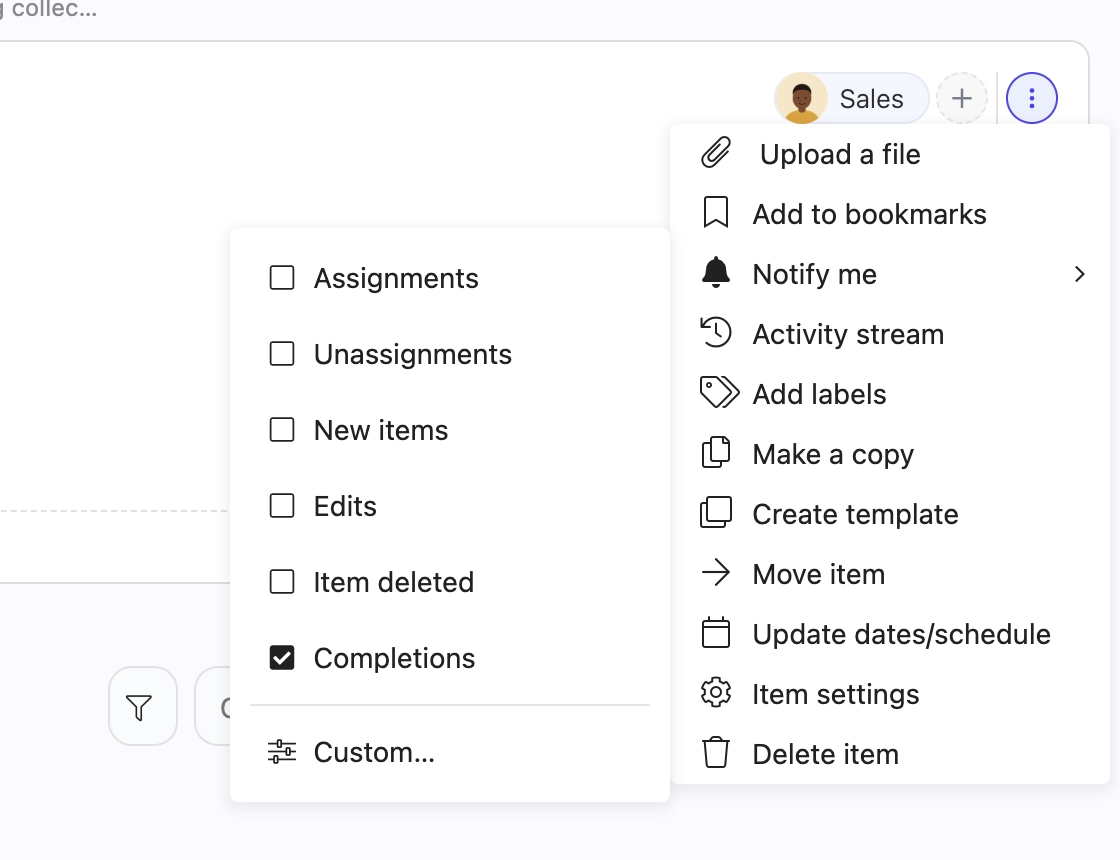
Click the ... menu in the top right and hover over Notify me.
Tick what you want to hear about. Untick it to stop.
The Notify me menu on a project. A solid bell shows that you already follow something here.
The options depend on the item:
Most items: Assignments, Unassignments, New items, Edits and Item deleted.
Projects and tasks add Completions.
Roles offer New projects and Role changes.
Circles offer Role assignments, Role unassignments, New projects, Circle changes and All governance changes in this circle.
A new tick starts as a daily digest with in-app notifications on, or takes the channels of the custom notifications you already have on that item. You can change the channels in your profile at any time.
Following everything made from a template
On an item made from a template, and on a core role such as Facilitator, the menu has a second section, for example Every Team Lead. A tick there covers every copy in the workspace, whichever circle it sits in. Changes to the template tells you when the template itself changes. See Templates.
Building your own
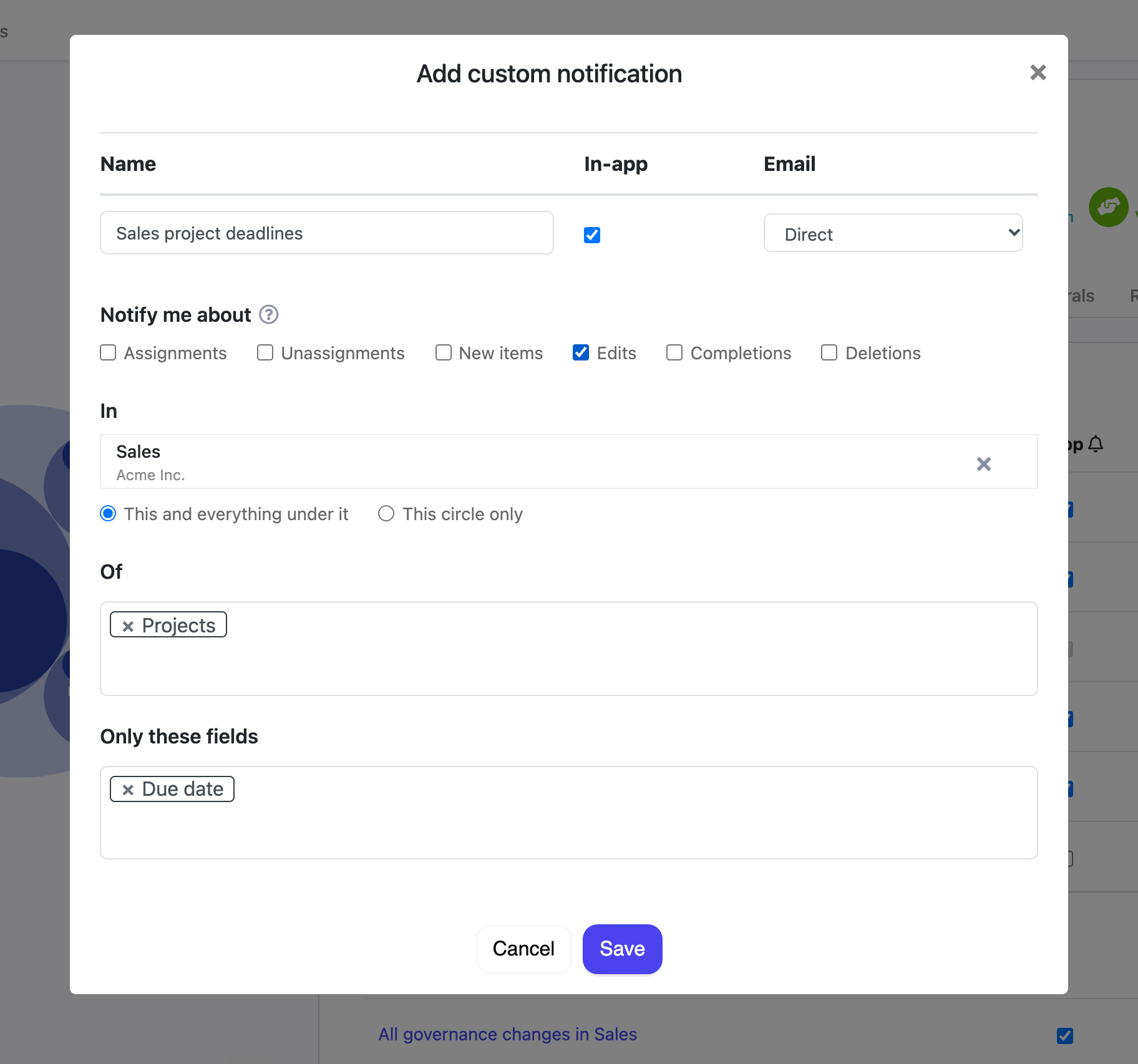
For more control, choose Custom... at the bottom of the Notify me menu, or click Add custom notification in the Notifications tab of your profile.
This custom notification reports due date changes on any project in Sales.
Name: optional. Shown instead of the generated title in your settings.
In-app and Email: how you want to receive it.
Notify me about: Assignments, Unassignments, New items, Edits, Completions or Deletions. Pick at least one.
In: the item to follow. You hear about it and everything under it. On a circle you can choose This circle only to leave out its sub-circles.
Of: limit it to items with certain labels or made from certain templates. With several picked, choose whether an item needs any or all of them. Leave it empty for any item.
Only these fields: appears when Edits is ticked. Limit it to changes in specific fields. Leave it empty for edits to any field.
Changing or removing a custom notification
Your custom notifications are listed under My custom notifications in the Notifications tab. Change the in-app and email settings right in the list, use the pencil to edit a notification, and the bin to remove it. You only receive notifications about items you have access to. If you lose access to an item, or it is deleted, the list says so.