
A role template is a role you define once and reuse. Nestr uses templates for two jobs: as core roles that every new circle receives automatically, and as a starting point when someone proposes a new role. Both live in the same place, and a template becomes a core role by ticking one checkbox.
Open Workspace settings, go to Applications, and find Default circle roles under Self organisation. Click Configure. You need admin rights, and the Self organisation app has to be on.
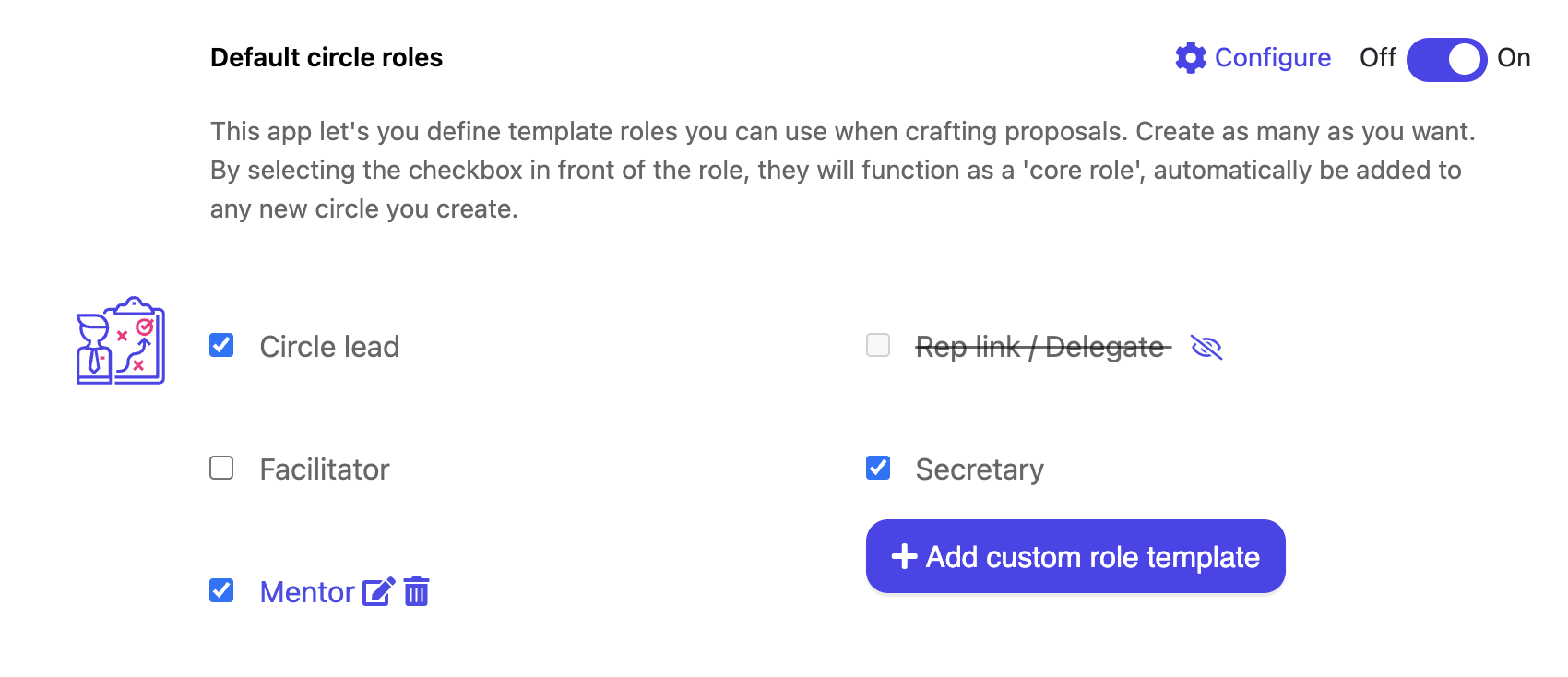
The list starts with four templates that come with Nestr:
The checkbox in front of each one is what makes it a core role. Ticked, the template is added to every circle you create from then on. Unticked, it stays available to apply by hand but no new circle gets it. Existing circles are not changed either way.
Create as many as you like. A template you use only in proposals is just as valid as one that seeds every circle.
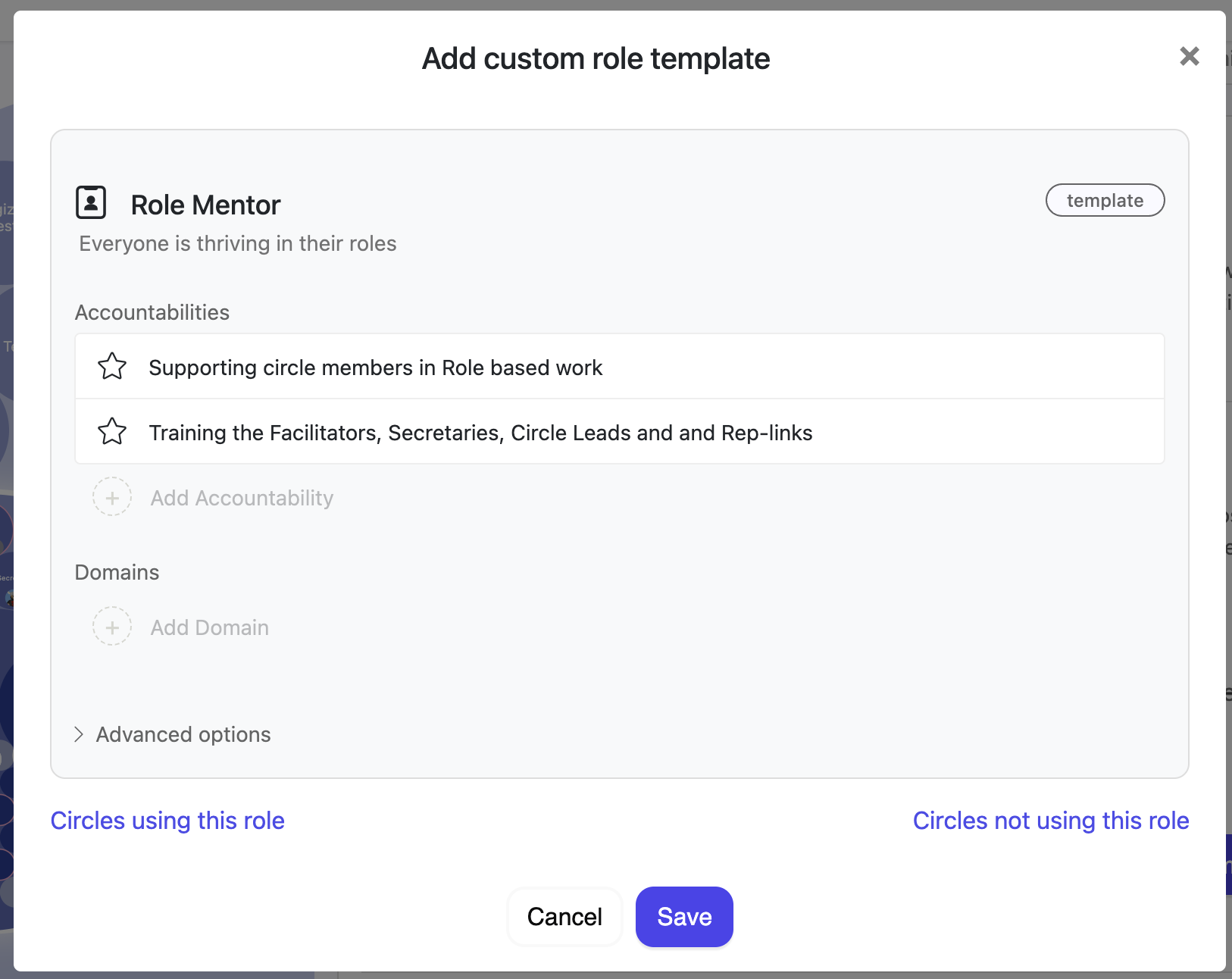
If your workspace has added custom fields to the Role label, those fields now appear on the template as well, in the same place they appear on a real role. Set a value on the template and every role that comes from it carries that value.
This covers fields defined on the Role label for the whole workspace. Fields scoped to a single circle or to a parent, and fields belonging to other labels, are not carried by templates. See Custom fields for how to define them.
A template value reaches a role at three moments:
The template is the source of truth for these fields. Clearing a value on the template clears it on those roles too, so a per-role value that differs from the template is not something to rely on for a field the template carries.
Each template has a switch: Roles created from this template follow it. With it on, new roles stay linked, and a later edit to the template reaches them without any further action.
For roles that already exist, use Apply to all N roles using this template. Nestr asks you to confirm first, because it is thorough:
When you propose a new role, the role editor has an Apply template dropdown in the top right. It offers three things:
Applying a template fills the proposal with its name, purpose, accountabilities, domains and field values, and you can edit any of it before proposing. See Tensions and governance proposals.
One thing to know: the role editor inside a proposal does not show custom fields, so you cannot set them there. Values from the template are still applied to the role when the proposal is enacted.


.png)


