New to self-organisation in Nestr? Start with Structure & Governance in Nestr to understand roles, circles, and governance basics.
An agenda-item or tension is a gap between how things are and how they could be. In Nestr, tensions are the engine that drives organisational evolution. They can surface operational needs ("I need help with this project") or structural ones ("We need a new role for this work").
Tensions vs agenda items
In Nestr these are the same, depending on your workspace settigns we'll change the wording to better align with the organisational norms. If you use Holacracy, Nestr will speak about tensions where for all other forms of Role-based work, we asddress them as agenda items. They are designed to help you move from a sensed issue or opportunity to a desired outcome, even if the outcome.
Creating a tension/agenda item
Click the + Create button in the left sidebar.
Select Create tension/agenda item.
In the dialog:
Enter a title - this is just a placeholder for you to remember what it is about. Keep it short.
Select the raising role (the role sensing the tension) or select the circle where you sense the tension personally (this defaults to the circle/role open on the page).
Optionally describe what you observe (Situation, data & fact).
Optionally, if you already know, select the type of output you want to capture. Operational or governance.
Optionally, under advanced, set this agenda item/tension to private if it contains sensitive information.
Click Create.
Create a new agenda item/tension from the + Create button or from your circle's meetings tab
Once created, the new agenda item/tension will open. There you can:
Capturing output
Optionally share your Personal feeling. This helps to differentiate between how you feel and what is required so that our personal feelings have a place, but do not hijack organisational decisions.
Optionally share what your Needs are. This is a textual way to describe the outcome you would like to achieve.
Then you can describe the outcome that will resolve the tension/agenda item. It the resolution is operational, assign an outcome. If the resolution is a structural change to your organisational governance add/change/remove a role/circle/policy, click add a governance proposal part (below we'll elaborate that process)
From the drop down, select the type of outcome: Project, Todo or a Decision.
In the Outcome field describe the exact deliverable.
Select the role accountable for delivering the outcome
Select the person in that role to take on the work
Click Add outcome.
Repeat these steps if your tension/agenda item require multiple outcomes to be resolved.
You can choose to save the tension/agenda item for the next circle meeting, or request the work. If saved for a meeting it will show up as a prepared tension/agenda item to be processed in the next meeting. If you request, the role fillers from whom you requested work will be notified and the can accept or amend the request. You optionally can use the comments section to dicuss any further clarifications.
Capture your feelings, needs and outcome and request the work from your peers.
Creating a governance proposal
Governance proposals let you change your organisation's structure: create, modify, or remove roles, circles, accountabilities, domains, and policies. Create the tension/agenda item just as mentioned above. But rather then creating it as an oporational tension or capturing output, select the governance option:
Use the + Create button or navigate to a circle's Work → Meetings tab.
Click Add agenda item/tension.
Choose type: Governance tension.
In the proposal, click one of the action buttons:
New role — propose creating a new role
New circle — propose creating a new circle
New policy — propose a new policy
Hold election — propose electing someone to a governance role
Or select an existing role/circle/policy to propose modifications, or to remove it or convert it (see Advanced options on a proposal part below).
Governance proposals contain of one or more parts to add/update/remove roles, circles, policies or hold elections
Creating or editing a role or circle
When creating or editing a role or circle, the role/circle we show completely editable. Set the title, purpose, accountabilities and domains to what they need to be. It does not need to be perfect, if the proposal get's you one step closer to resolving your tension/agenda item, it is ready for proposing.
Note that for roles there is an Apply template drop down in the top right, which fills the proposal from any role template defined in your workspace. The same drop down also lets you copy an existing role from anywhere in your organisation, or create a cross-link of a role from another circle into this one. Applying a template brings its accountabilities, domains and field values with it, and you can edit all of it before proposing. See Role templates and core roles for defining them.
Update your new or existing role or circle to suit your tension/agenda item.
In the right top for each proposal part you can toggle between the edit and differences views so that you and your peers can review the actual changes made in the proposal parts.
Toggle between the edit and differences views for the individual proposal parts.
Advanced options on a proposal part
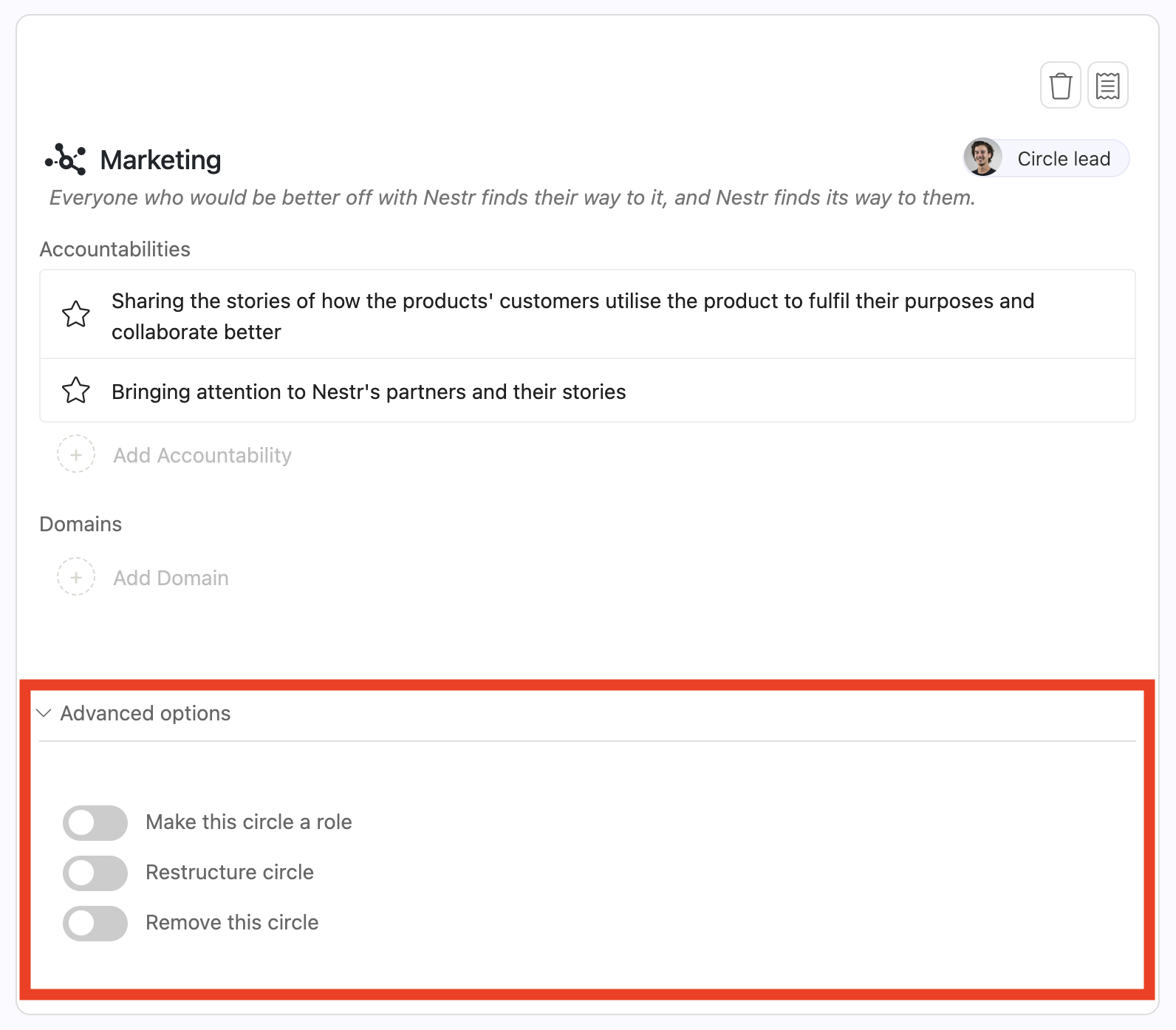
Every proposal part for an existing role, circle or policy carries an Advanced options section at the bottom. It starts collapsed, so click the header to open it. This is where you remove something from your governance, and where you turn a circle into a role or a role into a circle. A brand new role, circle or policy has nothing to remove yet, so these toggles only appear on parts that edit something that already exists. The anchor circle has no advanced options at all: it cannot be removed or converted. As with every other part of a proposal, nothing here takes effect until the proposal is adopted.
On a circle
The three circle options are mutually exclusive. Switch one on and the other two disappear until you switch it off again.
Restructure circle — move roles and policies in and out of the circle. Pick what moves out of this circle, and what moves into its parent circle. This is how you move a role one step up or down the hierarchy by consent rather than by admin rights. See Building your org structure.
Make this circle a role — collapse the circle back into a plain role. Choose which of its policies move up into the parent circle, and switch on move all the children of this circle to the parent circle to keep everything else it holds. Leave that off and the circle's contents are removed along with it.
Remove this circle — take the circle out of your governance. Its contents go with it, so if you want to keep the roles, policies or work inside it, move them out first. Restructure and Remove cannot both be on in the same part, so that means a separate proposal part or an earlier proposal.
Role, circle and policy proposals have an 'Advanced options' section for deletes, restructures and role to circle and vice versa changes.
On a role
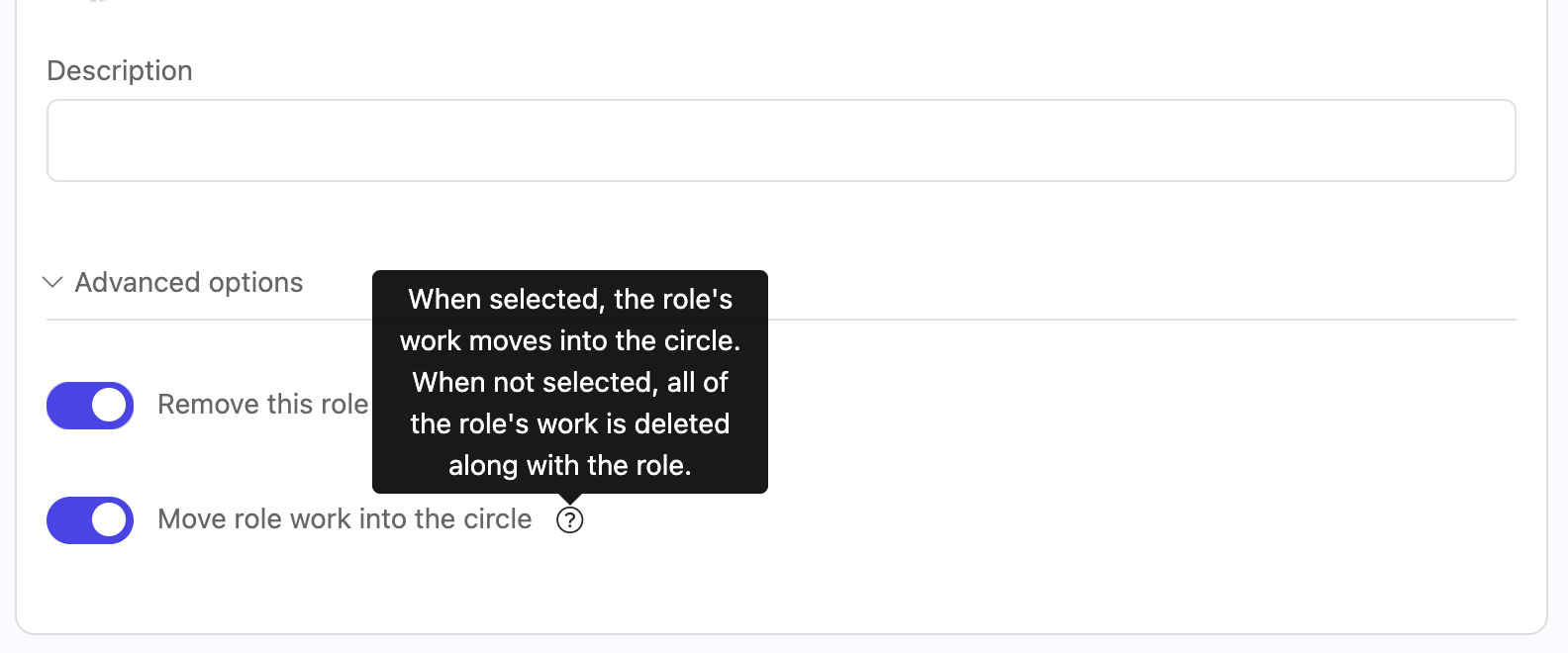
Remove this role — take the role out of your governance. If the role holds projects or next-actions, a second toggle appears: Move role work into the circle. It is on by default and lifts that work up into the circle. Switch it off and the role's work is removed along with the role.
Make this role a circle — expand the role into a circle, and select the roles and policies to move into it. Core governance roles cannot be turned into circles.
When removing a role you can choose to move the roles work and content into the circle first.
A role's advanced options also hold any governance proposal fields your workspace defines for roles, such as marking the role electable so it can be filled through an election.
On a policy
Remove this policy — take the policy out of the circle it belongs to.
None of this erases history. A removed role, circle or policy stays visible in the proposal and in the meeting report: hover over it in the list of changes to see it as it was just before removal. Governance lookback shows your whole organisation as it stood on any earlier date, and the activity stream records who removed what, and when.
Hold an election
Role elections are also part of the governance process. You can hold an election for any role that is marked as electable (set under advanced settings in the role proposal or set under 'item settings' if you are an admin for the workspace or circle).
Click the Hold election button on the new proposal part.
Select the electable role you wish to elect a member for.
Select the user elected through your own election process run asynchronously or in your meeting. The current circle members are available in the drop down and use the search inthe field to find users currently not in your circle to elect external members into this role.
Select the term for the election.
Elect a user into a role using the election proposal.
Propose your proposal
When your proposal is complete, you can save if for the next governance/structure meeting, or you can propose it asynchronously. When you propose asynchronously, all circle members will get an email to invite them to respond. By default they will be presented with the differences view to draw their attention to only what you changed. They can ask questions and share reactions in the comments and click 'Escalate to meeting' or 'No objection' to consent. By default, if a user does not respond, it will be auto consented in 5 days. Once all members have consented or after the 5 day period has passed, the proposal will be adopted and your proposal will become part of your organisational governance.
Deleting a tension
To delete a tension you've raised:
Navigate to the tension detail page.
Click the ... on the tension page and select 'Delete item'
Confirm the deletion in the dialog: "Are you sure that you want to delete this tension?"
Deleted tensions are soft-deleted and can be recovered from the activity stream in the circle.
Tips
Start with tensions, not solutions — describe the gap you're experiencing before jumping to a governance proposal.
Use async governance — for straightforward changes, async consent saves meeting time.
Check the diff view — always review what a proposal will actually change before voting.
Prepare tensions before meetings — add agenda items in advance so the facilitator can plan the meeting effectively.
Removed items stay visible. When a proposal removes a role, circle or policy, hover over it in the proposal's list of changes to view it as it was just before removal. See governance lookback.




.png)


