
A timeline shows your work as bars on a calendar, the layout most people know as a Gantt chart. Every item becomes a bar running from its start date to its due date. You can drag those bars to reschedule, stretch them to change how long something takes, and link them so one piece of work waits for another to finish.
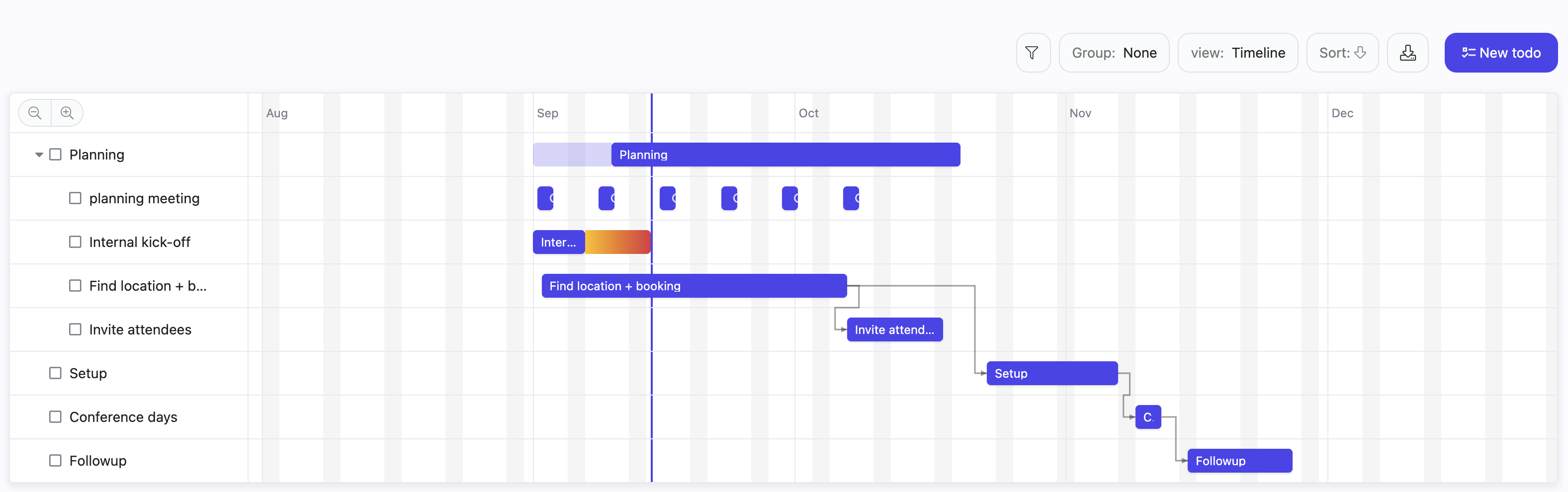
The timeline is a view, not a separate page. Anywhere Nestr offers a List view it also offers Timeline: a circle's projects and todos, a role's work, My projects, the sprint and story boards in the Scrum and Agile app, the key results under an objective, and any search tab you have added yourself. Open the view switcher above the list and choose the timeline icon.
You can also put view:timeline in the search itself. A view chosen from the switcher is remembered in your browser and is yours alone. A view written into a search travels with that search, so a tab saved with view:timeline opens as a timeline for everyone who opens that type of item. See Nestr search and Customising views.
Use the magnifier buttons above the chart to zoom between days, weeks, months and quarters, and the crosshair button to jump back to today. Clicking a row opens that item beside the chart, exactly as it does in a list.
Dragging writes the dates onto the item straight away, so everyone sees the change. You need edit rights on an item to move it, the same rights that let you edit it anywhere else. See Rights management.
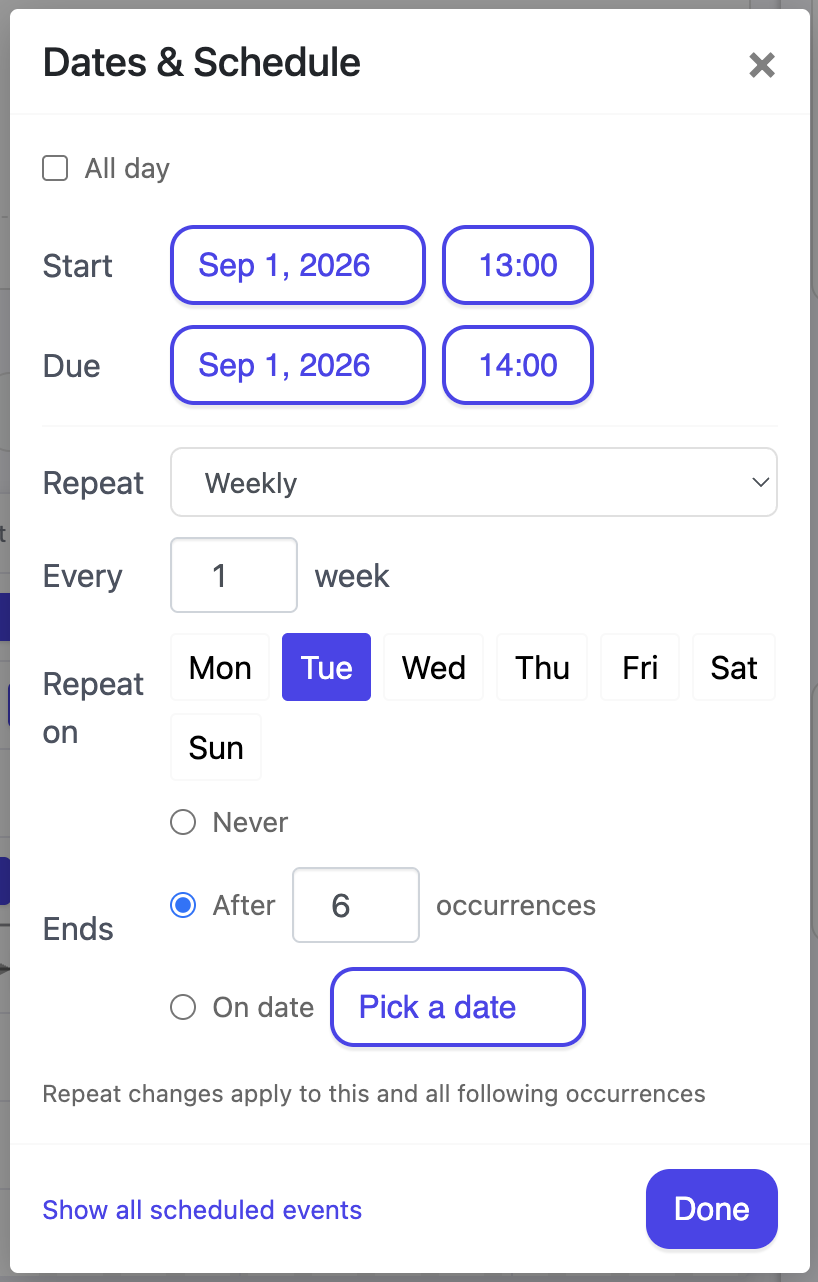
If you would rather type dates than drag them, open the item and use Dates & Schedule. That is the one place start, due, all day and repeat are all set. See Recurring meetings and tasks for the repeat side of it.
Hover a bar and a link handle appears at its end. Drag that handle onto another bar and the second item now waits for the first to finish. On the item itself this reads as This item starts after, and on the item it waits for, as Waits for.
You do not need the timeline to manage dependencies. The three dot menu on any item has a Dependencies entry that opens the same picker, where you search for the item to wait for.
Dependencies are not just an annotation. When you push an item's due date later and something is waiting on it, Nestr moves the waiting item along too, keeping its length, and carries on down the chain to anything waiting on that.
Three rules keep this from surprising you:
Nestr does refuse one thing: a link that would make a loop, where A waits for B and B waits for A. That reports This dependency would create a cycle and nothing is saved.
A repeating item does not fill the chart with a row per occurrence. The series keeps one row and each occurrence in view gets its own bar on it, with a repeat icon on the bar. Drag one of those bars and Nestr asks whether you mean this occurrence or the entire series. See Recurring meetings and tasks.
A timeline is only as good as the list behind it, and the search operators for dates are the fastest way to shape that list.
has:start and has:due return items that carry each date, and has:!start the ones still missing a start.due:this_quarter or start:2026-01-01_2026-03-31 narrow to a period. Both take named ranges such as today, this_month, this_quarter and this_year, a single YYYY-MM-DD date, or a range written with an underscore between two dates.sort:start and sort:due order the rows.has:pastdue picks out what has already slipped.So label:project has:due due:this_quarter view:timeline is this quarter's projects as a Gantt chart, and saving that on a tab gives the whole circle the same picture. See Nestr search for the full syntax and Customising tabs for putting it on a tab.
A Gantt chart is a good way to see whether a plan holds together, and a poor way to run people. In a role based organisation the dates belong to the roles doing the work, not to a planner drawing the chart. The timeline is most useful when a circle uses it to check its own commitments against each other, and least useful when it becomes a schedule handed down to people who were not part of making it.
See also Projects and todos and Customising views.


.png)


