Getting comfortable navigating Nestr is the key to working effectively. This guide walks you through the main interface elements, how to find anything, and how to customise your views.
The sidebar
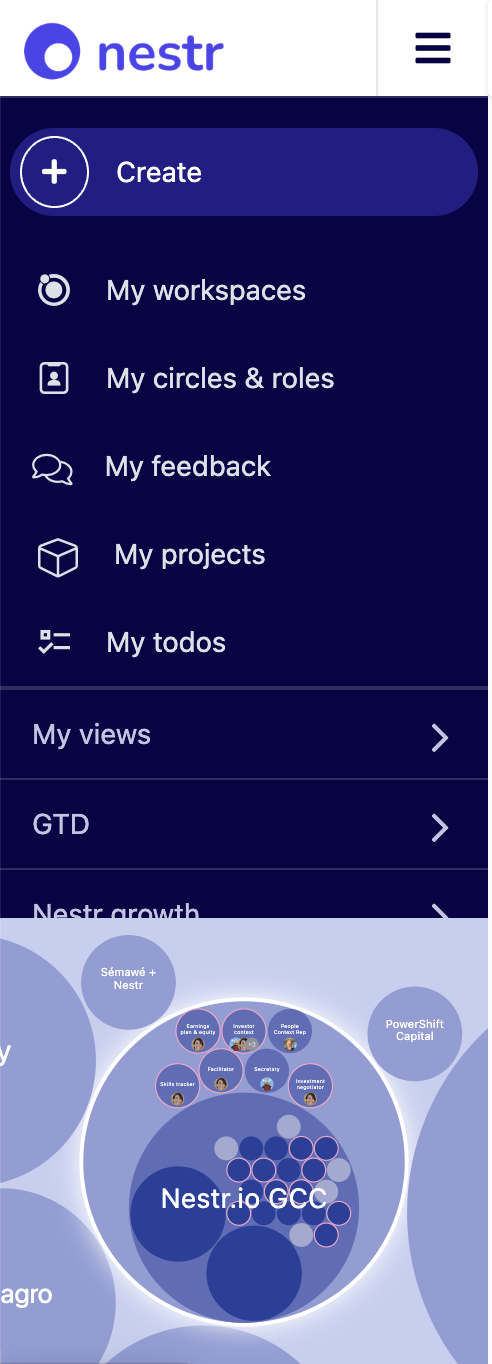
The left sidebar is your home base. It contains:
Your workspaces — click any workspace to enter it.
Personal views — shortcuts like My projects, My todos, My circles and roles.
Circle navigation — once inside a workspace, you'll see its circles and sub-circles.
+ Create button — quick access to create roles, circles, projects, todos, and tensions.
Use the navigation bar to quickly find your roles, projects, todos and create new items quickly.
The circle visualisation (org map)
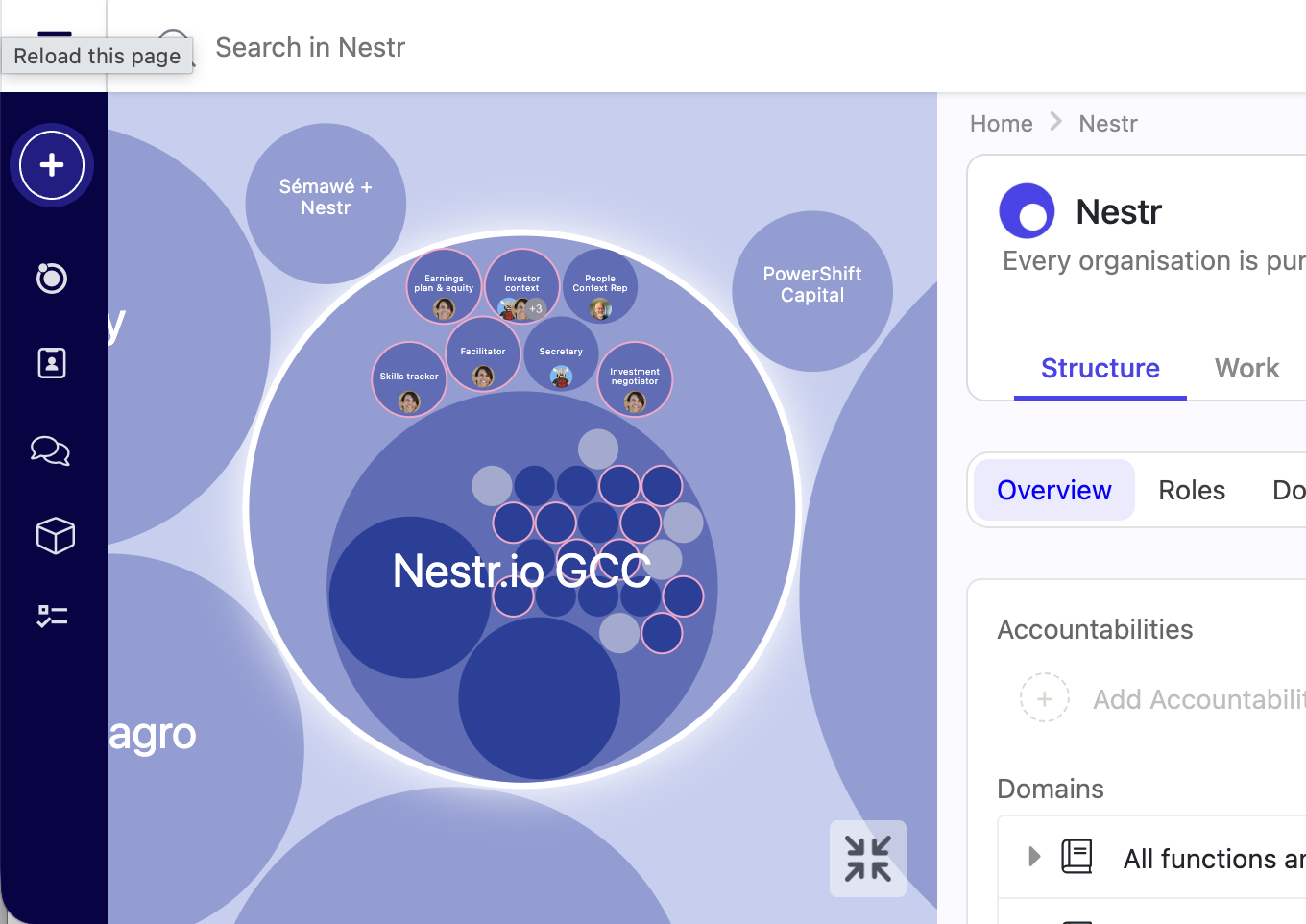
When you enter a workspace, you'll see the purpose fingerprint — a visual map of your organisation's circles:
Click into a circle to zoom in and see its roles and sub-circles.
Click the parent circle or use the breadcrumb at the top to zoom back out.
The visualisation updates automatically as your governance evolves.
Use your mouse/trackpad zoom functions to easily explore your organisation.
The map can also show the past. Expand it to full screen and click the history icon to see your organisation as it was on any date. See governance lookback.
Use the circle and role navigator to move around your organisation visually.
Tabs within a circle or role
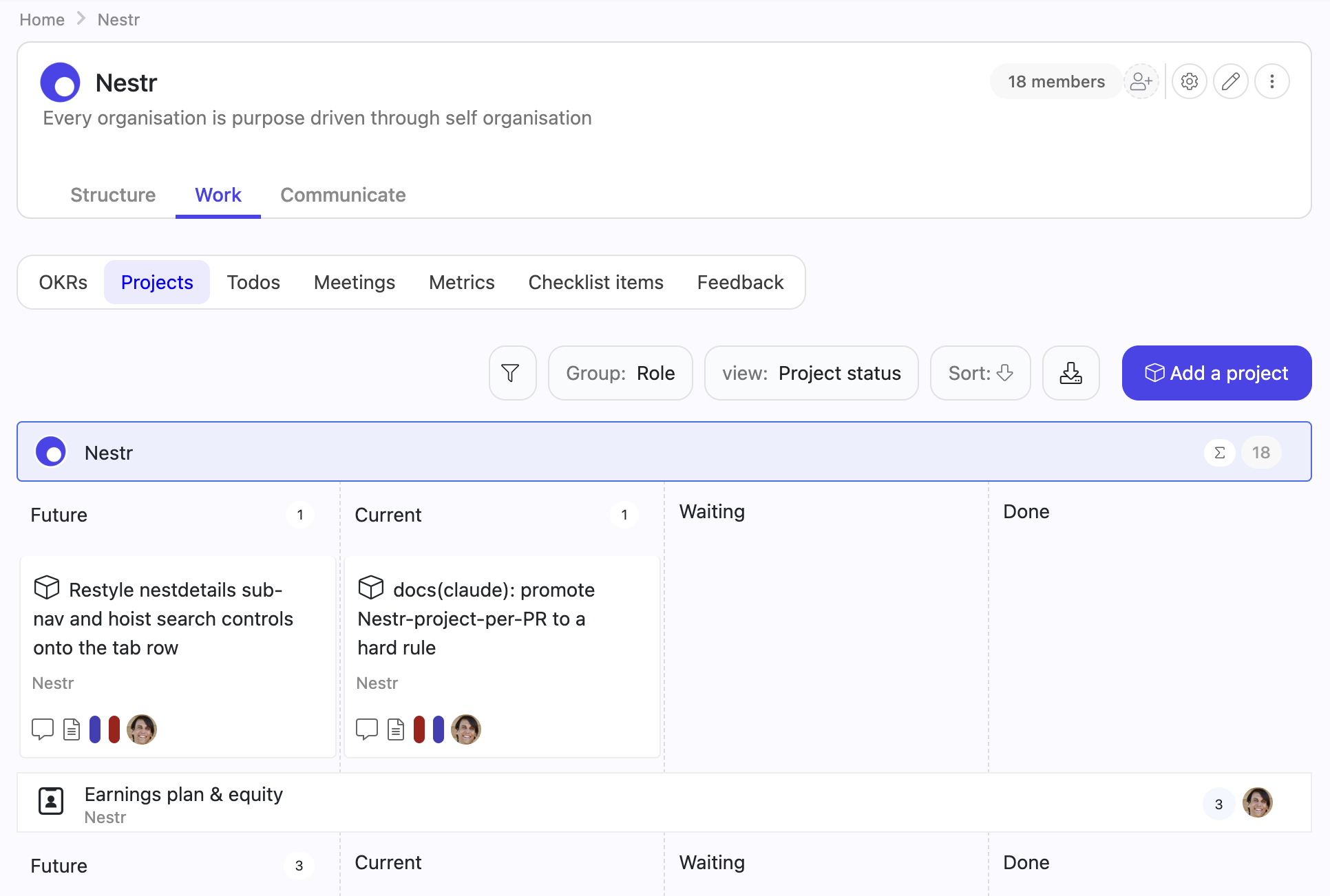
When viewing a circle or role, content is organised into tabs:
Structure tab
About — purpose, accountabilities, domains, and quick-add buttons.
Roles — all roles in the circle with their fillers.
Domains & Policies — governance rules for the circle.
Work tab
Projects — kanban board of projects in this context.
Todos — A list of all open todos in the circle.
Meetings — start meetings, add agenda items, view past meetings.
Checklists — recurring tasks tied to roles.
Metrics — KPIs owned by roles in this circle.
Feedback — feedback given/received within this circle.
Custom tabs — You can add more custom tabs depending on your organisation/circle needs
Each circle has their own work tabs where you can find everything related to your circle.
My Circles and Roles
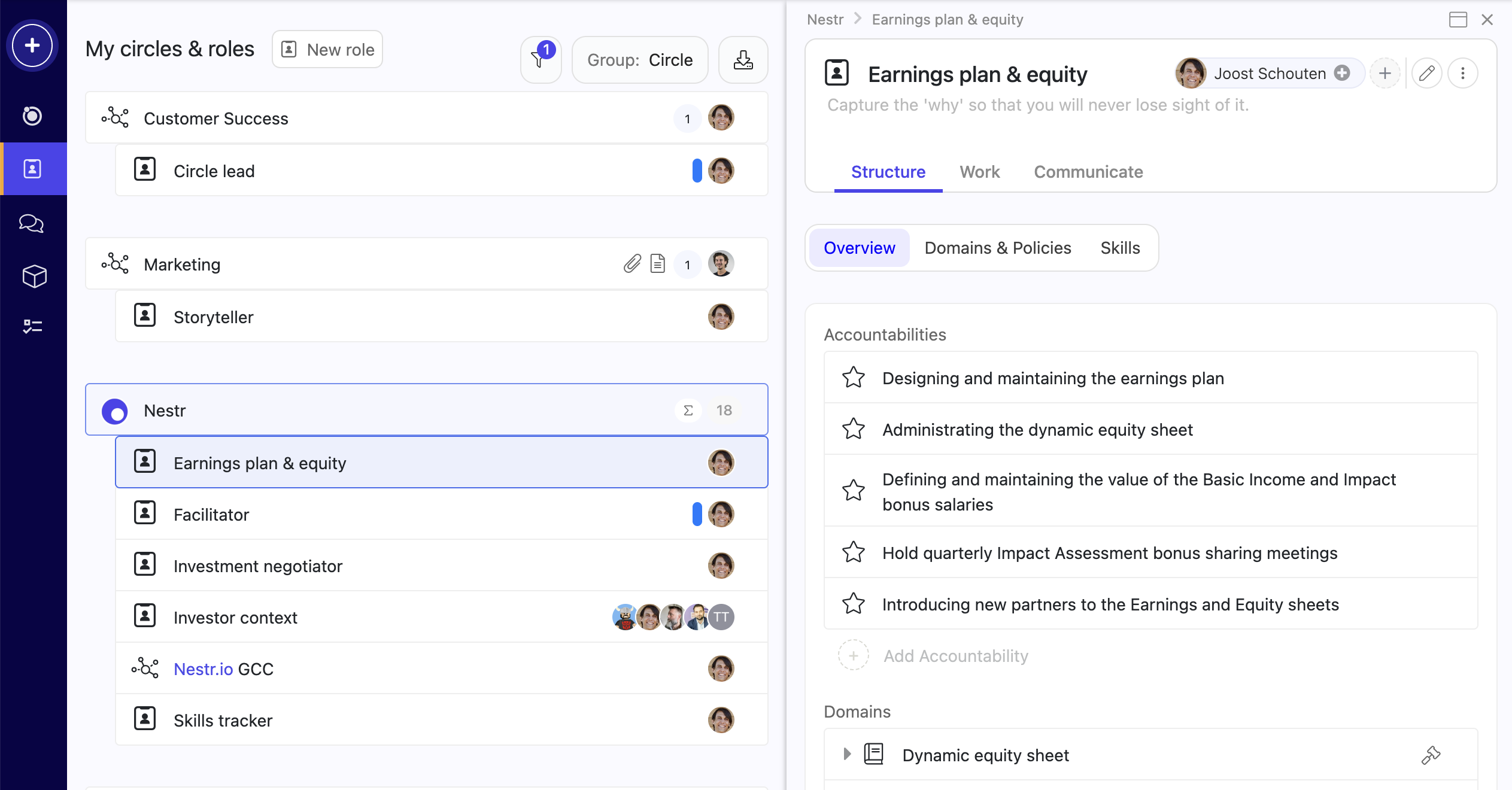
Click My circles and roles in the sidebar to see every role you fill across all workspaces, organised by circle. This is your personal dashboard showing where you contribute.
My roles shows you all your roles in the circles you are a member of
Using search
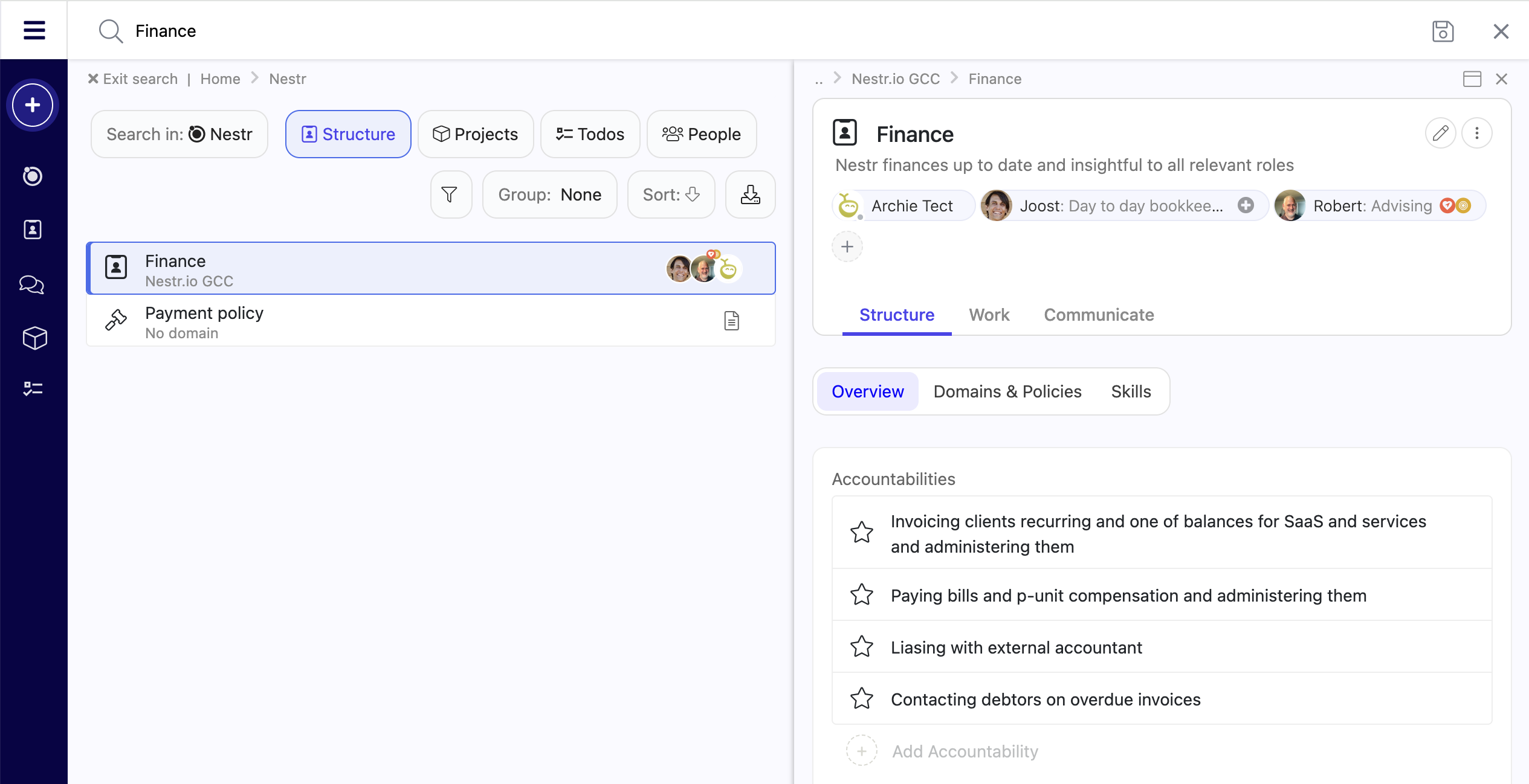
The search bar at the top of the page is one of Nestr's most powerful features. For a full guide, see Nestr search.
Quick search tips
Type any text to search across all items (roles, projects, people, etc.).
Use @name to search by person.
Use #label to search by label.
Use label:role to find all roles, label:project for projects.
Combine operators: assignee:me label:project finds all your projects.
Find anything quickly using the search bar
Saving searches
Found a useful search? Save it as a custom view in your sidebar for quick access later. This turns search into a personal dashboard builder.
Troubleshooting navigation
Can't find my workspace after login
Check the sidebar for all workspaces you're a member of.
If a workspace is missing, you may not have accepted the invitation yet — check your email.
Landing in the wrong circle
If you always land in a specific circle instead of the workspace overview, navigate up using the breadcrumb trail or click the workspace name in the sidebar.
Sidebar disappeared
The sidebar can be collapsed. Look for a toggle icon at the top left to expand it again.



.png)


