Connect a Slack workspace to a Nestr workspace and keep conversation, governance, and meeting activity in sync across both tools. Once mapped, channels in Slack mirror the Nestr item they’re connected to.
From Nestr to Slack:
From Slack to Nestr:

Sync only flows to or from channels that are mapped. There are two levels of mapping: a workspace-level default and per-circle.
Pick a channel from the Default Slack channel dropdown. Activity without a more specific mapping goes there. The Nestr bot is auto-joined to the channel as soon as you pick it.
On the comments tab of any circle or project, click the channel-picker icon next to the comment input. Pick a Slack channel; mappings on a circle override the workspace default for everything inside that circle.

In the pop-up, select the circle specific Slack channel and save.
You can also opt to include/exclude sub-circles. When turned off, you won't get any updates specific to any sub-circles. If a sub-circle has their own channel defined, those messages won't show up in the super-circle regardless.

If you opt to silence a circle’s channel, its comments are not synced anywhere. They also do not fall through to a super-circle’s channel or the workspace default channel. Use this to keep a circle’s conversation out of Slack entirely.
Private channels are hidden from Nestr until the bot has been let in. Slack only shows the Nestr bot the private channels it is a member of, and a Slack security policy stops bots from joining private channels on their own. Until the bot is invited, the channel will not appear in Nestr’s channel picker.
To link a private channel:
/invite @Nestr. Any member of the channel can do this.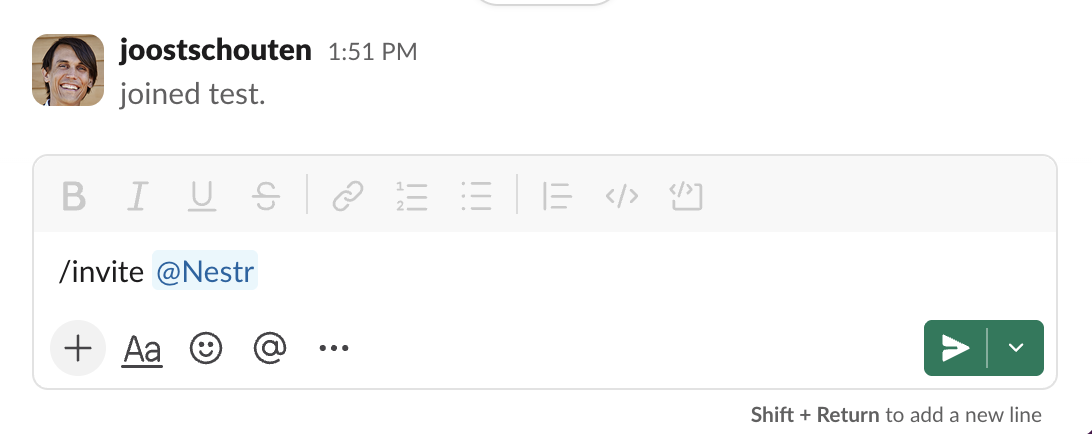
Comments you post in Nestr show up in the matching Slack channel as a message under your name and avatar. If a comment in Nestr is a reply to another, it shows up as a thread reply in Slack on the right parent message.
Governance and meeting events ship with action buttons next to the message: Join meeting on a started meeting, View summary on a closed one, No objections / Escalate to meeting on a proposal. Click and the action runs in Nestr.
Messages posted in a mapped Slack channel show up as comments on the corresponding Nestr item. Replies to a Slack thread come into Nestr as replies to the right comment.
If a Slack user’s email matches a Nestr user in the workspace, the comment is attributed to that Nestr user (their name and avatar). If not, the email shows as the author so it’s still clear who posted.
Click Disconnect in workspace settings. Existing comments stay in Nestr but new comments stop syncing in either direction.


.png)


