Your data is always yours. Nestr provides multiple ways to export and back up your organisational data. This guide expands on the export options covered in Importing and exporting data.
Exporting to CSV/Excel
From search
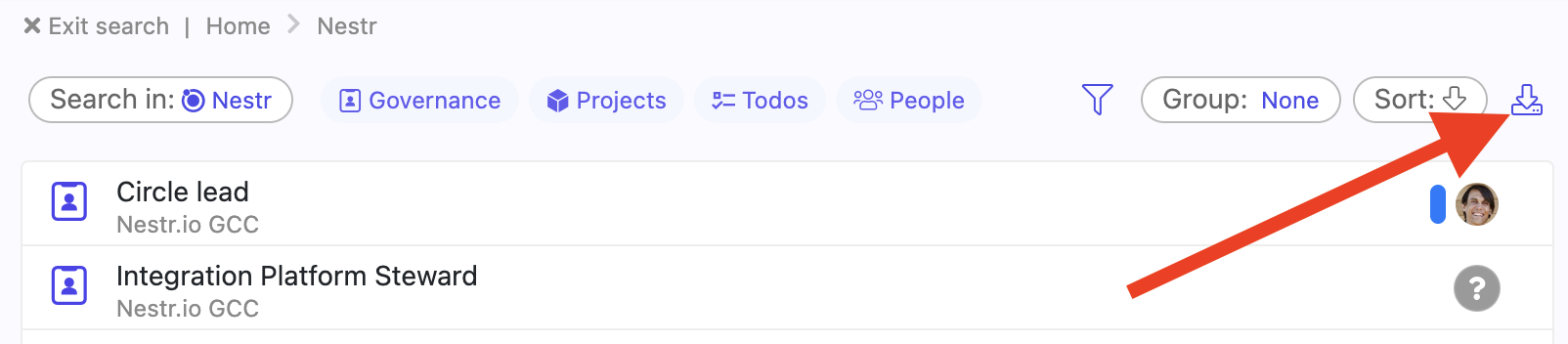
Use the search bar to find the items you want to export (e.g., label:role for all roles, label:project for all projects).
Click the export button in the search controls.
Your data downloads as a CSV file that opens in Excel or Google Sheets.
Download any search or board to csv/excel
To export a hand-picked set instead of everything in the results, select the items you want and choose Export from the With selected menu. See Bulk actions.
From view tabs
Most tabs (Projects, Roles, etc.) offer an export button in the view controls. This exports the items currently displayed in that view.
What's included in CSV exports
Item title, purpose, description
Assigned users
Labels and custom field values
Status (for projects: Current, Future, Waiting, Done)
Due dates
Parent circle/role path
Custom fields
What's NOT included
Chat messages and feed posts
File attachments
Exporting a workspace
To export a whole workspace
Open your workspace settings (you need to be an admin)
Navigate to the "Workspace details" tab
Click the export workspace button at the bottom of the page
This will create an inbox item in your inbox where csv files will be stored with your workspace data which you can download.
Using the API for exports
For comprehensive or automated exports, use the Nestr API. The API gives you access to all workspace data in JSON format, including governance records, project history, and role structures.



.png)


